
How to Update APK Without Play Store (Step-by-Step Guide for Android)
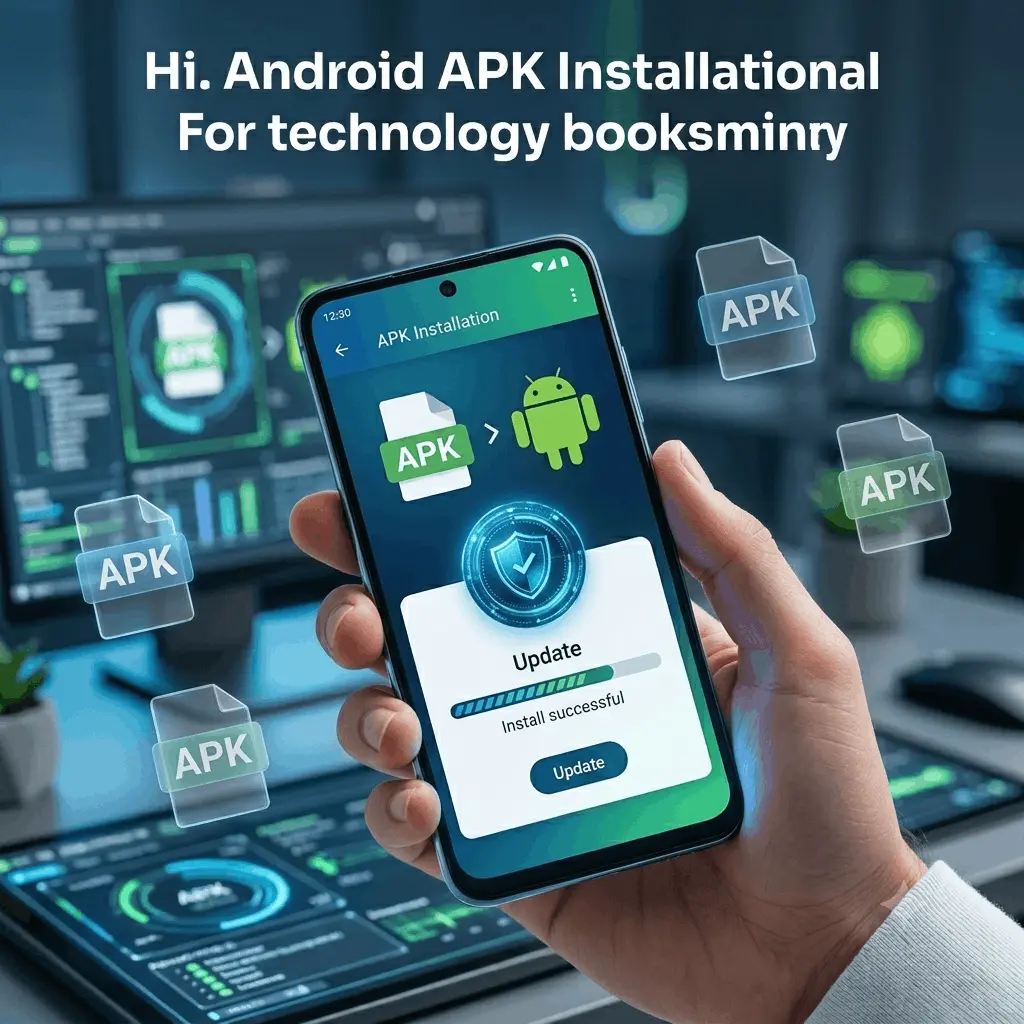
If an app isn’t updating through Google Play Store, or you’re using a device without Google services, you can update the APK manually.
The process is straightforward, but doing it incorrectly can cause installation errors, compatibility problems, or security risks.
This guide explains how to update an APK safely while keeping your app data intact.
Can You Update an APK Without Play Store?
Yes.
Android allows apps to be updated manually by installing a newer APK version over the existing installation.
When the new APK:
- Comes from the same developer
- Uses the same signing certificate
- Has a higher version number
Android treats it as an update rather than a new installation.
In most cases, your app settings, login information, and saved data remain unchanged.
Before You Start
Before downloading any APK update, check the following:
- Verify the Current App Version
Open:
Settings → Apps → Select App → App Info
Look for:
- Version number
- App package name
Knowing the current version helps ensure you’re installing a newer release.
- Back Up Important Data
Although updates usually preserve data, backing up important information is good practice.
Consider backing up:
- Photos
- Documents
- Chat histories
- Game progress
- Use Trusted APK Sources
Not every APK website is safe.
Trusted sources generally verify uploaded files and developer signatures.
Examples include:
- APKMirror
- APKPure
- Official developer websites
Avoid downloading APKs from unknown forums, random file-sharing sites, or unofficial mirrors.
Step 1: Download the Latest APK Version
Visit a trusted source and download the latest version of the application.
Before downloading, confirm:
- Version number is newer than your installed version.
- APK matches your device architecture.
- Android version requirements are compatible with your device.
Common architectures include:
- ARM64-v8a
- armeabi-v7a
- x86
- x86_64
Installing the wrong architecture can cause installation failures.
Step 2: Allow Installation from Unknown Sources
Modern Android versions require permission before installing apps outside Play Store.
Android 8.0 and Later
Go to:
Settings → Apps → Special App Access → Install Unknown Apps
Select the browser or file manager you used to download the APK.
Enable:
Allow From This Source
Android 7 and Earlier
Go to:
Settings → Security
Enable:
Unknown Sources
After installation, consider disabling it again for security.
Step 3: Install the APK Update
Locate the downloaded APK file.
Usually found in:
Downloads Folder
Tap the APK.
Android should display:
Update App
instead of
Install App
Tap:
Update
Wait for installation to complete.
If successful, the application will be updated while preserving existing data.
Step 4: Verify the Update
Open the application.
Then check:
Settings → Apps → App Info
Confirm the version number matches the newly installed release.
Test key functions to ensure everything works correctly.
How to Check APK Compatibility
Not every APK works on every Android device.
Verify:
Android Version
An app requiring Android 14 will not run on Android 11.
Check:
Settings → About Phone → Android Version
Device Architecture
Applications may be compiled for specific processors.
Common CPU types:
| Architecture | Typical Devices |
| ARM64-v8a | Most modern Android phones |
| armeabi-v7a | Older Android devices |
| x86 | Some tablets and emulators |
| x86_64 | Advanced tablets and emulators |
Using the wrong APK often results in installation errors.
What About Split APKs?
Some apps are no longer distributed as a single APK.
Instead, they use:
- Split APKs
- App Bundles
- .apks packages
These require a specialized installer.
Common tools include:
- Split APK Installer (SAI)
- APKMirror Installer
If installation fails despite using the correct version, the app may require split APK installation.
Is It Safe to Update APKs Manually?
Manual updates can be safe if you follow basic security practices.
Safe Practices
✔ Download only from trusted sources.
✔ Verify the developer name.
✔ Install only newer versions.
✔ Keep Google Play Protect enabled.
✔ Avoid modified or cracked APKs.
Risky Practices
✖ Downloading from random websites.
✖ Installing unofficial modified versions.
✖ Granting unnecessary permissions.
✖ Ignoring malware warnings.
Manual installation bypasses some of Google’s automated security checks, so caution is important.
Common APK Update Problems and Fixes
App Not Installed
Possible causes:
- Corrupted APK
- Wrong architecture
- Signature mismatch
- Insufficient storage
Fixes:
- Re-download the APK.
- Verify compatibility.
- Free storage space.
- Download from a trusted source.
Signature Mismatch Error
Android only allows updates signed by the same developer certificate.
If the signatures differ:
- Uninstall the old version.
- Install the new APK.
Warning: Uninstalling may erase apps data.
Parse Error
Causes:
- Incomplete download
- Unsupported Android version
- Damaged APK file
Fix:
Download the APK again and verify device compatibility.
Update Button Doesn’t Appear
Instead of “Update,” Android shows “Install.”
This usually means:
- Different package name
- Different signing certificate
- Different app variant
Verify you’re downloading the official version of the same application.
Insufficient Storage
Even small APK updates may require additional temporary space.
Try:
- Clearing cache
- Removing unused files
- Uninstalling unused apps
Best Practices for Manual APK Updates
- Keep a backup before major updates.
- Use trusted APK repositories.
- Install only official releases.
- Check Android version requirements.
- Verify app signatures when possible.
- Avoid unofficial modified APKs.
- Scan suspicious files before installation.
Following these steps significantly reduces the risks associated with manual updates.
FAQ Section
How do I update an APK without losing data?
Install a newer APK signed by the same developer over the existing version. Android usually preserves app data during the update process.
Can I update apps without Google Play Store?
Yes. Download the latest APK from a trusted source and install it manually.
Why won’t my APK update install?
Common reasons include signature mismatches, incompatible Android versions, corrupted downloads, insufficient storage, or incorrect device architecture.
Is installing APK updates legal?
Generally yes. Installing official APKs distributed by developers is legal. However, downloading pirated or modified versions may violate terms of service or copyright laws.
Can I update APKs on phones without Google services?
Yes. Devices that do not include Google Play Store can still update applications through manual APK installation.
What happens if I install an older APK version?
Android may block the installation. If it allows a downgrade, some apps can experience compatibility issues or data problems.
Do APK updates remove app settings?
Normally no. Updates installed over an existing apps typically keep user data and settings intact.